Write Google Apps Script With AI: Automate Sheets and Gmail Without Surprises
You can write Google Apps Script with AI even if you are not a programmer, and it is one of the most practical ways to automate Google Sheets, Docs, Forms and Gmail. Apps Script is JavaScript that runs inside Google's tools, so a short script can send reminders, clean a sheet, file attachments or create documents from rows of data. AI can draft these scripts from plain-English descriptions. It can also write scripts that delete the wrong rows, email the wrong people or hit Google's limits. This guide gives a safe workflow, with Google's published quotas and permissions guidance, based on Google's Apps Script quota documentation, checked on 15 October 2026.
What Apps Script can do
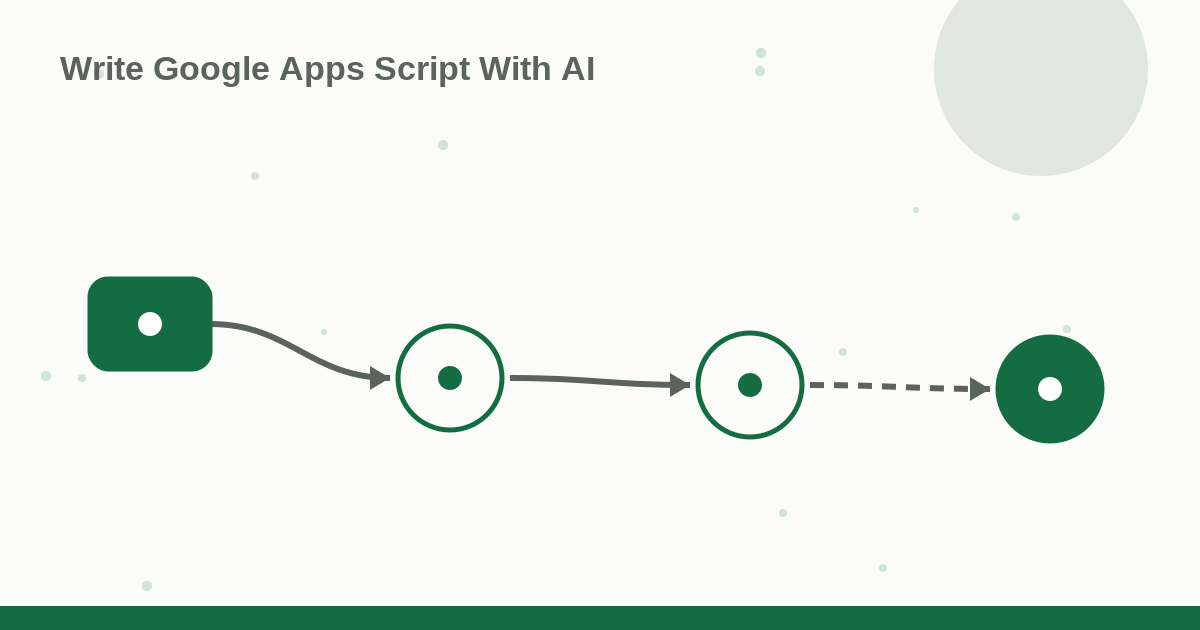
Apps Script can read and write cells, create and edit documents, send email, create calendar events, call external web services and run on triggers such as time schedules or form submissions. Typical small business uses include sending weekly summaries, formatting new rows, creating invoices from templates and notifying a team when a form is submitted.
Know the limits first
Google's quota documentation, last updated on 3 September 2026 when we checked, lists limits per user per day. Script runtime per execution is 6 minutes for both consumer and Workspace accounts. Trigger total runtime is 90 minutes a day for consumer accounts and 6 hours for Workspace accounts. Email recipients per day are listed as 100 for consumer accounts and 1,500 for Workspace accounts, and URL Fetch calls as 20,000 and 100,000 respectively. Google says quotas can change at any time without notice and exceeding one stops the script with an exception. Check the current page before designing around any number.
Step 1: Describe the task precisely when you write Google Apps Script with AI
Write down the trigger, the input, the action and the output. Compare "Send me a summary" with "Every Monday at 8am, read rows from the Sales sheet added in the last 7 days, calculate total revenue, and email the total to me at [address] with the subject 'Weekly sales'." Mention sheet names, column letters and any rules for edge cases such as blank rows.
Step 2: Work on a copy
Make a copy of the spreadsheet or document and test the script there. Never run a new script on live data. Create a small test sheet with sample rows, including awkward cases. Keep a backup or version history so you can restore changes.
Step 3: Ask AI for the script and an explanation
Ask AI to write the script and explain each part in plain English: what triggers it, what data it reads, what it changes and what it sends. Reading the explanation reveals misunderstandings before you run anything. Ask it to add comments and logging statements so you can see what it did.
Prompts that work well
- "Write a Google Apps Script that, for the active sheet, copies rows where column E says 'Done' to the 'Archive' sheet and then deletes them from the original. Log how many rows were moved. Do not touch other rows."
- "Explain this script line by line for someone who does not code, and list what could go wrong."
- "Add error handling that sends me an email if the script fails, and avoid sending more than one email per run."
- "Modify the script to skip rows where column B is empty.
Step 4: Review permissions
The first time you run a script, Google asks for authorization to access your data. Read what it requests: access to Sheets, Gmail, Drive or external services. Do not approve broader permissions than needed, and be wary of scripts from untrusted sources. Check that a script that only needs to read a sheet is not asking to send email on your behalf.
Step 5: Test in small steps
Run the script on three sample rows first and check the results. Then run it on a larger sample. For email scripts, send test emails only to yourself. For deletion or overwriting, log what would change before it does, or write results to a new sheet instead of overwriting.
Step 6: Add triggers carefully
Time-based triggers can send messages or change data automatically, so test manually first, then turn on the trigger. Start with a low frequency. Add a kill switch, such as a cell that must say ON for the script to run. Monitor executions in the Apps Script dashboard.
Step 7: Document and share
Add a comment at the top of the script: purpose, author, date, data used and who to contact. Keep a short note in the spreadsheet explaining the automation. If others depend on it, share ownership and agree who maintains it. See our guide to human-in-the-loop AI automation for review habits.
Security and privacy
Do not paste personal data, passwords or API keys into AI tools, and never hard-code secrets in scripts. Be careful with scripts that email data outside your organization. For Workspace accounts, follow your administrator's policies. See our guide on whether it is safe to upload files to ChatGPT for general principles.
When to use other tools
For simple connections between apps, an automation platform may be easier. See our Zapier vs Make vs n8n comparison. If you only need AI inside Docs and Gmail, see our guide to Gemini in Google Workspace. Apps Script shines when you need custom logic inside Google's tools.
Example: a monthly invoice reminder
A freelancer keeps invoices in a Google Sheet with a due date and a paid column. She asks AI for a script that emails her a list of invoices more than seven days overdue, every Monday. She tests it on a copy with sample rows, checks the permissions, runs it manually and then adds a weekly trigger. The script has a kill switch cell and a comment with her name and purpose. It sends one email per week instead of dozens of manual checks.
Common mistakes
- Running new scripts on live data.
- Approving broad permissions without reading.
- Ignoring quotas and failures.
- No logging or kill switch.
- Pasting secrets into AI tools.
FAQ
Do I need to know how to code to use Apps Script?
Not necessarily. AI can draft scripts and explain them, but you should test carefully and understand what each script does.
What are the Apps Script limits?
Google's documentation lists per-user daily quotas, including 6 minutes per execution and different email and fetch limits for consumer and Workspace accounts. They can change without notice.
Is it safe to run AI-written scripts?
Test on copies, review permissions, add logging and avoid running scripts you do not understand.
Can Apps Script send email?
Yes, within quotas, and it needs your authorization. Test by sending to yourself first.
When should I use another tool?
For simple connections between apps, an automation platform may be easier than writing code.
Conclusion
To write Google Apps Script with AI safely, describe the task precisely, test on copies, read permissions, respect Google's quotas and add logging and a kill switch. Review every script until you understand it, and keep secrets and sensitive data out of prompts.
Sources and methodology
Quotas come from Google's Apps Script quotas page (https://developers.google.com/apps-script/guides/services/quotas), last updated 3 September 2026 when checked on 15 October 2026; Google notes limits may change at any time. This guide is based on our earlier research and testing of AI assistants, automation, writing and productivity tools, linked throughout. It contains no vendor pricing or legal claims beyond those attributed below. Features, prices and platform rules change; check each provider's current terms.