Automate Google Forms With AI: Replies, Routing and Summaries Without Losing Control
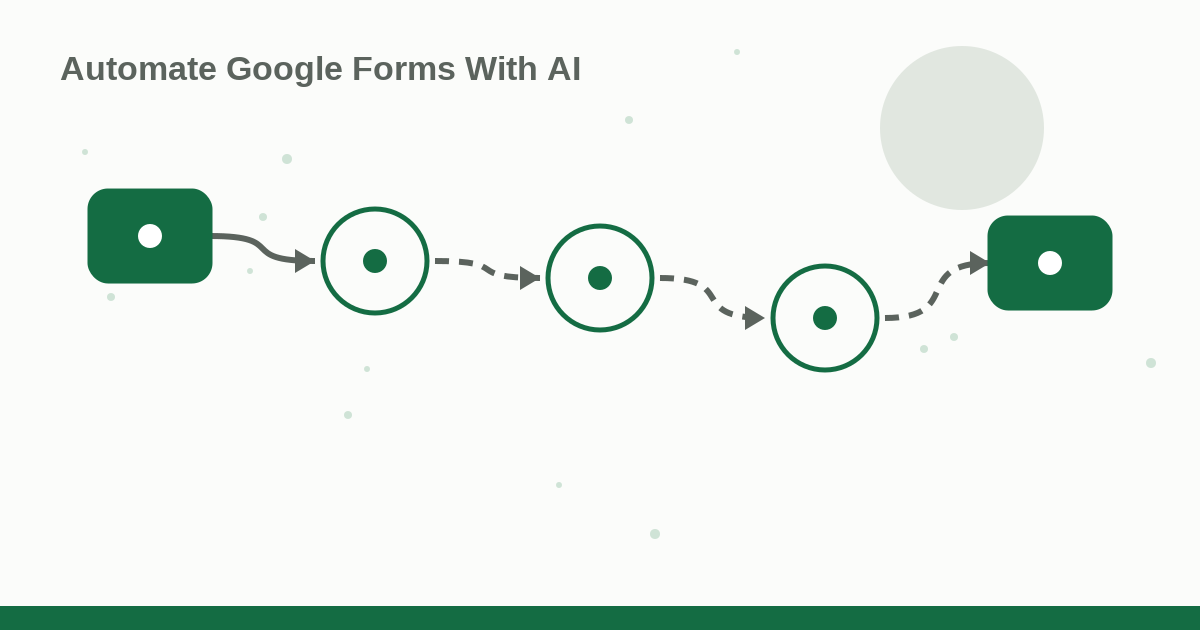
You can automate Google Forms with AI to turn a plain list of responses into something that saves time: replies drafted for each submission, enquiries routed to the right person, answers summarized each week and follow-ups scheduled. Forms are a gateway for personal data and customer requests, so the automation needs care: wrong routing, accidental data exposure and messages sent without review are the typical problems. This guide gives a workflow using Google Sheets, Apps Script or an automation platform, with approval steps and the published Apps Script quotas, based on Google's documentation checked on 15 October 2026 and our earlier research of automation tools.
What you can automate
Common automations include: copying responses to a sheet and tagging them; sending a confirmation email; notifying a team member in chat; drafting a personalized reply for review; categorizing open-text answers; creating tasks; and producing a weekly summary of responses. Start with one that saves obvious time and carries little risk.
Three ways to do it
- Built-in features: Google Forms can send responses to a Google Sheet and notify you of new responses.
- Apps Script: short scripts that react to form submissions, update sheets and send emails, within Google's published quotas.
- Automation platforms: tools that connect Forms or Sheets to email, chat, CRMs and AI steps; see our Zapier vs Make vs n8n comparison and our guide to Make.com AI templates.
Step 1: Design the form for automation
Use clear, structured questions: dropdowns and multiple choice for categories, date fields for dates and short text for names. Keep open-text questions for what truly needs words. Add a required email field if you plan to reply, and consent text explaining how data will be used. A good form makes automation easier and more accurate.
Step 2: Connect responses to a Sheet
Link the form to a Google Sheet so each response becomes a row. Add columns for status, owner, category and notes, and keep the raw response columns untouched. Use the sheet as the system of record that automations read from and write to. Protect columns and sharing so only the right people can edit.
Step 3: Add AI where it helps
Use AI for language tasks: summarizing long answers, suggesting a category from a fixed list, drafting a polite reply or extracting fields from free text. Keep rules in the prompt: "Choose one category from this list. If unsure, return 'Other'. Do not invent information." Avoid using AI for decisions with consequences, such as accepting an application.
Prompts that work well to automate Google Forms with AI
- "Read this enquiry and suggest one category from: billing, support, sales, other. Return only the category and one sentence of reasoning."
- "Draft a friendly reply of under 100 words acknowledging this request and saying we will respond within two working days. Do not promise anything else."
- "Summarize the following 40 responses into five themes with counts. Quote exact phrases."
- "Flag any response that mentions a complaint, a safety concern or a deadline.
Step 4: Respect Google's quotas
Google's Apps Script quota page, last updated 3 September 2026 when we checked, lists per-user daily limits including 6 minutes per script execution, email recipients of 100 per day for consumer accounts and 1,500 for Workspace accounts, and trigger runtime of 90 minutes a day for consumer accounts and 6 hours for Workspace accounts. Google says limits can change at any time. If you expect many submissions, check the current numbers and consider an automation platform or a Workspace account.
Step 5: Add approval before sending
Draft replies into the sheet for a person to approve, rather than sending them automatically. A simple column "Approved?" with a script or platform step that sends only approved rows keeps humans in charge. Once the quality is proven for a narrow case, such as simple confirmations, you can automate more. See our guide to human-in-the-loop AI automation.
Step 6: Handle personal data carefully
Forms often collect names, emails, phone numbers and sometimes sensitive details. Collect only what you need, tell people how you will use it, restrict access to the sheet and delete data when no longer needed. Do not paste sensitive responses into unapproved AI tools. Rules vary by country. See our guide on whether it is safe to upload files to ChatGPT.
Step 7: Test with sample submissions
Submit test responses covering normal, empty, long and unusual answers. Check that rows are created correctly, categories make sense, replies are accurate and notifications go to the right person. Test with test email addresses you control. Fix problems before sharing the form.
Step 8: Monitor and improve
Check the sheet daily at first for errors and miscategorized rows. Track response times, how often drafts need editing and any complaints. Update prompts and categories. Add an alert if the automation stops, and keep a manual process as a fallback.
Example: a local services enquiry form
A cleaning company uses a Google Form for quote requests with dropdowns for property type and frequency. Responses go to a sheet. An automation categorizes each enquiry, drafts a reply with a questionnaire for missing details and notifies the owner in chat. The owner approves replies in the sheet, and approved rows are emailed. Response time falls from a day to under two hours, and nothing is sent without approval.
Measuring value
Track response time, hours saved, the share of drafts sent without edits and customer satisfaction. If edits are heavy, improve the form questions and prompts. If the volume is small, a simple notification may be enough.
Common mistakes
- Sending AI replies without review.
- Free-text everything, making automation harder.
- Ignoring consent and data retention.
- Exceeding script quotas.
- No fallback when the automation fails.
FAQ
Can I use AI with Google Forms?
Yes, by sending responses to a sheet and using scripts or automation platforms to call AI for summaries, categories and draft replies.
Do I need to code?
Not necessarily. Automation platforms offer visual builders, but Apps Script lets you customize if you are comfortable with it.
Are there limits on Apps Script?
Google lists per-user daily quotas, including 6 minutes per execution and email limits that differ for consumer and Workspace accounts, and says they can change.
Should AI reply to form submissions automatically?
Start with drafts for approval, and automate only simple, low-risk replies once quality is proven.
How do I protect form data?
Collect only what you need, restrict sheet access, use approved tools and follow privacy rules.
Conclusion
To automate Google Forms with AI, design structured questions, connect responses to a sheet, use AI for summaries, categories and drafts, respect Apps Script quotas and require approval before sending. Protect personal data, test with samples and keep a manual fallback.
Sources and methodology
Apps Script quotas come from Google's quotas page (https://developers.google.com/apps-script/guides/services/quotas), last updated 3 September 2026 when checked on 15 October 2026; Google notes limits may change. This guide is based on our earlier research and testing of AI assistants, automation, writing and no-code tools, linked throughout. It contains no vendor pricing or legal claims beyond those attributed below. Features, prices and platform rules change; check each provider's current terms.